Quick Answer
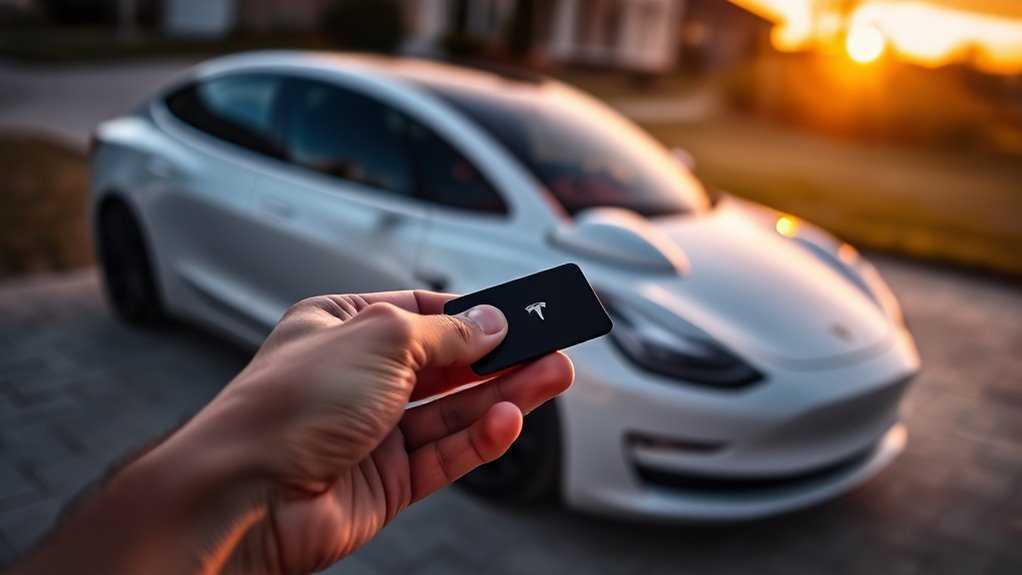
To unlock your Tesla, hold the key card flat against the B-pillar between the front and rear doors until the vehicle chirps or flashes its lights. Once inside, you must press the brake pedal within two minutes to start the car. If you take longer than that, you will need to scan the card again on the center console.
You rely on your Tesla for efficiency, but fumbling with a physical key card can feel counterintuitive when you are in a rush. A simple, flat tap on the B-pillar unlocks your vehicle and keeps your day moving. This guide covers how to master your key card, manage new keys, and troubleshoot common issues.
Key Takeaways
- Hold the key card flat against the B-pillar to trigger the unlock signal.
- Start the vehicle within two minutes of entry to avoid re-authentication.
- Manage and register new cards through the Locks menu on your car touchscreen.
- Remove lost key cards immediately from the system to maintain vehicle security.
- Keep the card clear of thick wallets or interference to ensure the reader detects it.
Understanding the Tesla Key Card
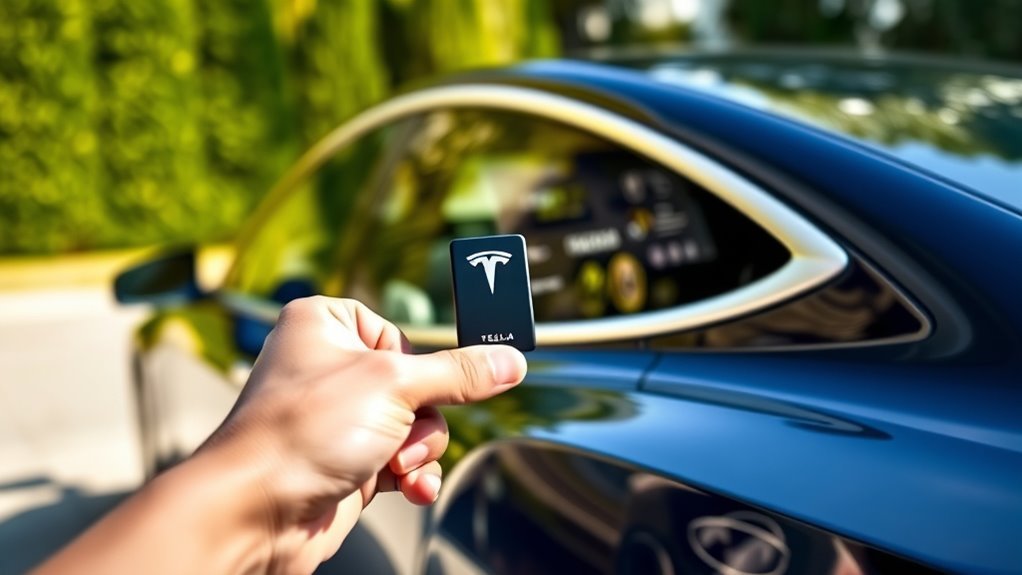
The Tesla key card provides a reliable, backup entry method that requires no batteries or charging. Its waterproof, durable design makes it an ideal permanent resident for your wallet.
When you place the card flat against the B-pillar, your car confirms access with a chirp or flashing lights. If you do not start the engine within two minutes, the system requires you to re-authenticate the card. You can also manage your keys through the Tesla app or your vehicle touchscreen.
How to Unlock Your Tesla With the Key Card
Unlocking your vehicle only takes a few seconds when you follow the correct positioning. Hold the card directly against the B-pillar, which sits between the driver and rear passenger doors.
Wait for the chirp or lights before pulling the handle. If you fail to press the brake pedal within two minutes of entering the cabin, you must scan the card again. Should you experience any delays, tap the card against the center console to complete the authentication process.
| Action | Description |
|---|---|
| Gaining Entry | Hold card against B-pillar |
| Inside Access | Press brake pedal within two minutes |
| Re-authentication | Tap card on center console if time expires |
Step-by-Step Instructions
Successful access depends on proper placement and timing. Follow these steps to ensure a smooth unlock experience every time.
Key Card Placement Tips
Remove the card from your wallet or phone case to improve signal strength. Hold it flat against the B-pillar until the vehicle acknowledges the signal. If the car does not react, adjust the angle or hold the card against the pillar for one additional second.
Confirmation Signals Explained
Your Tesla uses a chirp or flashing lights to communicate that the lock has disengaged. These signals indicate the car is ready for you to enter and drive. If you do not see or hear these cues, the card was likely not positioned correctly on the B-pillar.
Re-authentication Process
If you enter the car but do not press the brake within two minutes, the vehicle locks its starting mechanism. You must then place the key card on the center console or wireless charging pad. Once the car detects the card in this position, the system allows you to shift into drive.
How to Add a New Key Card
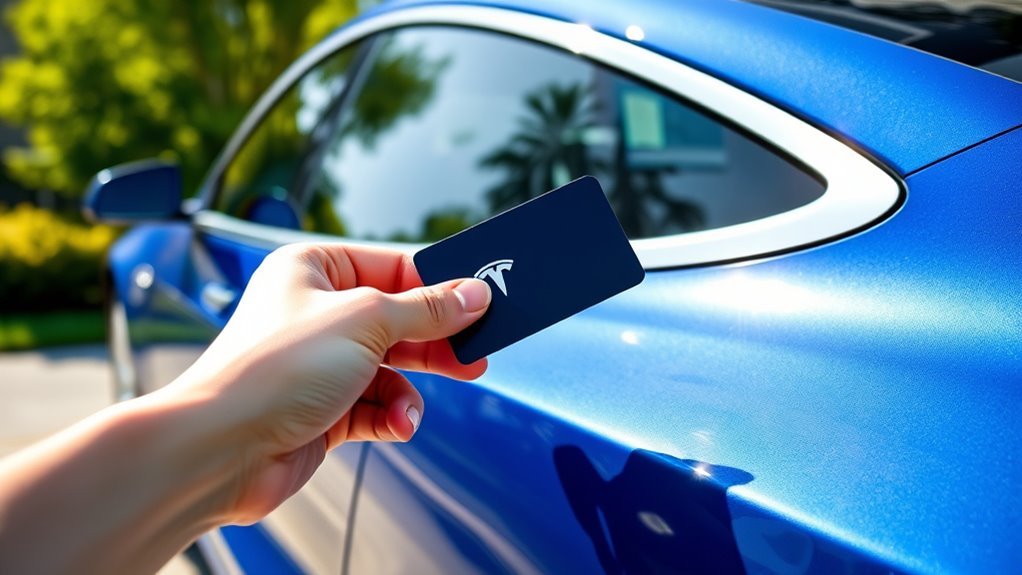
You can register extra key cards easily using the vehicle touchscreen. First, use a currently authorized key to gain entry and start the car.
Navigate to the Controls menu and select the Locks tab. Tap the plus icon to begin adding a new key. Place the new card on the center console where the car can read it and follow the on-screen prompts. This process ensures only keys you authorize can operate your vehicle.
Using Your Smartphone as a Key
Your smartphone offers a more convenient alternative to the physical card. It utilizes Bluetooth for automatic, hands-free entry as you approach the vehicle. You must keep your phone within 30 feet of the car for this feature to function reliably.
NFC Functionality Requirements
If you prefer to tap your phone like a key card, ensure NFC is enabled in your phone settings. Keep the Tesla app running in the background and verify that your phone has enough battery life. A dead phone cannot communicate with the vehicle sensors.
Automatic Unlocking Features
Automatic unlocking relies on Bluetooth and location services. Enable these permissions for the Tesla app to allow the car to detect your arrival. This allows you to walk up and open the door without touching your phone or card.
| Feature | Description |
|---|---|
| Automatic Access | Hands-free entry via Bluetooth |
| NFC Tapping | B-pillar access for specific models |
| App Permissions | Requires location and Bluetooth access |
Proximity Access Limitations
Proximity features require a constant, stable Bluetooth connection. If you leave your phone inside a bag or a signal-blocking case, the car may fail to unlock automatically. Keep your phone accessible to avoid these minor connectivity interruptions.
How to Solve Common Key Card Problems
If your card stops working, verify that you are not holding it against a metal surface. Move the card away from other credit cards or shielding materials. If the problem persists, try placing the card at different heights on the B-pillar.
Revoking Access for Lost Key Cards
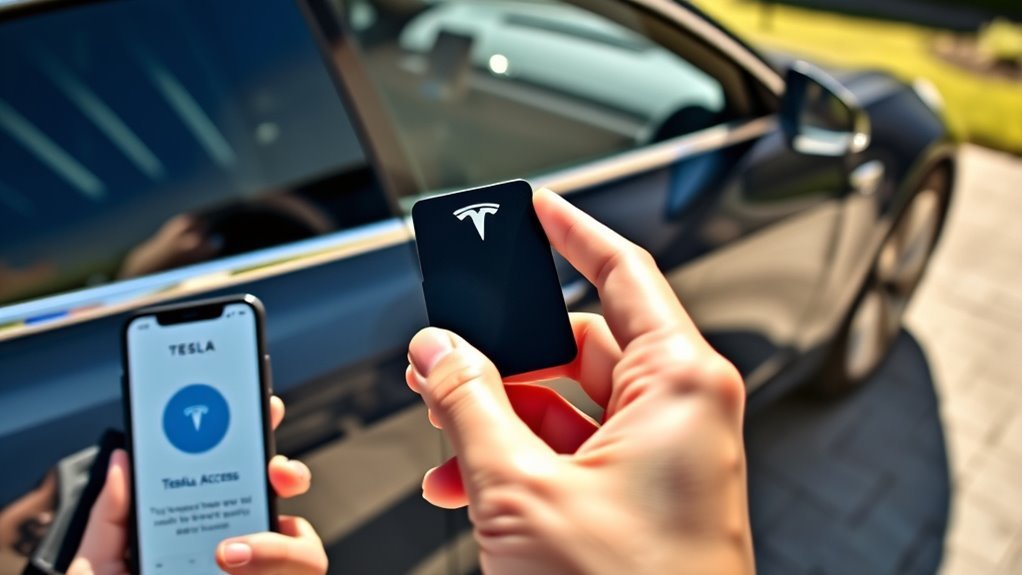
If you lose a key card, remove its digital credentials immediately to prevent unauthorized access. Navigate to the Locks menu on your car display to see all authorized keys. Select the trash icon next to the lost card and confirm the deletion. Always keep your remaining keys updated to maintain your security.
Key Card Security Best Practices
Tesla key cards are affordable and serve as a vital backup. While they are durable and waterproof, they remain vulnerable if you lose them. Treat your key card like a physical house key; keep it stored in a safe place. Never leave an active key card inside the vehicle while it is parked in public.
Frequently Asked Questions
How do I unlock my Tesla from outside with the key card?
Hold the card flat against the B-pillar until you hear the car chirp or see the lights flash. Ensure the card is not inside a thick wallet for better detection.
How do I use my backup key card?
Keep your backup card in a safe location outside the vehicle. If your primary key fails, use the backup card on the B-pillar to enter and the center console to start the car.
Why is my Tesla not unlocking?
Verify that your phone has Bluetooth and location services enabled. If using a card, ensure it is held flat against the B-pillar and that no large metal objects are interfering with the signal.
How do I access the Tesla service menu?
You can access service tools by going to Controls, Software, and holding the model name for a few seconds. Note that this menu is intended for diagnostic purposes and should be used with caution.
Conclusion
Mastering your Tesla key card ensures you can access your vehicle reliably and securely. Review your registered keys periodically and remove any that you cannot locate. Practice these simple steps to enjoy a stress-free entry and drive every time you approach your car.






Leave a Reply