Quick Answer
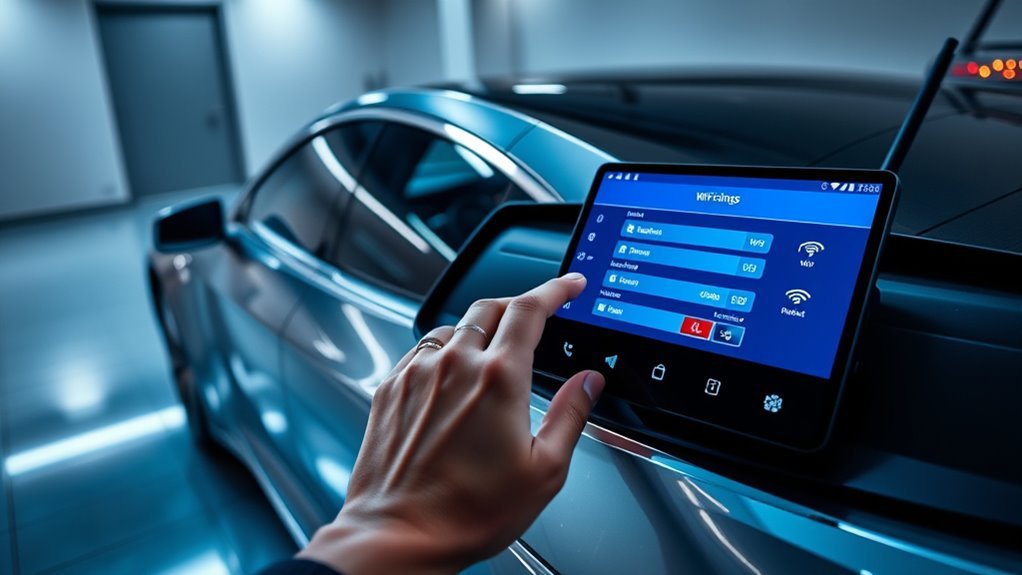
To connect your Tesla to Wi-Fi, tap the Wi-Fi icon on the top corner of your touchscreen display. Select your preferred network from the list, enter the password when prompted, and tap Confirm. Your vehicle will now prioritize this connection for software updates and online features.
You rely on your Tesla for more than just transportation. When your car connects to a stable home network, it downloads software updates faster and keeps your entertainment features running smoothly.
This guide explains how to connect your Tesla to Wi-Fi and resolve common issues that prevent a reliable connection. Follow these simple steps to ensure your vehicle stays updated and ready for the road.
How to Connect Your Tesla to Wi-Fi
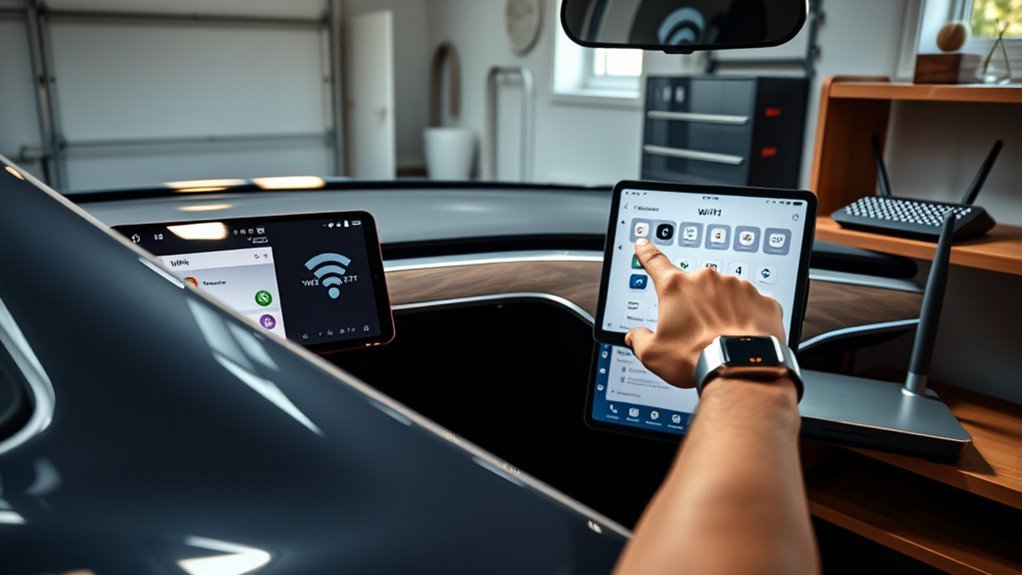
Connecting your Tesla to a wireless network improves your ownership experience. It ensures you receive timely software updates and enables features that require a high-speed data connection.
Start by finding the Wi-Fi icon on your vehicle’s touchscreen. Tap this icon to open the network menu and view a list of available signals. Select your preferred network and enter the correct password to establish the link.
Once the car authenticates the password, a confirmation message appears on the screen. Always ensure your home network uses modern security protocols to keep your vehicle’s data private.
Why a Wi-Fi Connection Matters
A stable Wi-Fi connection improves your vehicle’s performance. It allows the car to download large software updates much faster than the standard cellular connection.
Regularly updating your Tesla ensures you benefit from the latest features and bug fixes. These updates keep the system operating at peak efficiency.
Keeping your Tesla connected ensures it receives the latest updates, greatly enhancing its performance and driving experience.
When connected to Wi-Fi, you can also initiate updates remotely through your Tesla mobile app. This connection also preserves your cellular data for essential tasks while you are on the road.
Finally, a strong connection improves the performance of streaming apps and navigation data. It provides a more responsive experience compared to relying solely on cellular signals.
Checking Your Connection Status
You can verify your connection status at any time by glancing at the status bar on your main display. The Wi-Fi icon shows whether you have an active connection and how strong the signal is.
Verifying Network Availability
Before you connect, confirm your home router broadcasts a signal reaching your parking area. If the network name does not appear, check these factors:
- Visibility: Ensure your router broadcasts the SSID (network name).
- Proximity: Confirm the car is within physical range of your router.
- Security: Double-check the password for typos.
- System Status: Restart your router if the car fails to detect any local networks.
Assessing Signal Strength
A weak signal can lead to dropped connections and interrupted downloads. Navigate to the Wi-Fi settings menu to view signal bars next to your network name.
If you see only one or two bars, your connection might prove unstable. Consider installing a Wi-Fi range extender in your garage to improve coverage in your parking spot.
Confirming Success
After you join a network, look for the checkmark next to your network name in the settings menu. You should also see the Wi-Fi icon in the top status bar indicating the connection is active.
How to Remove a Saved Network
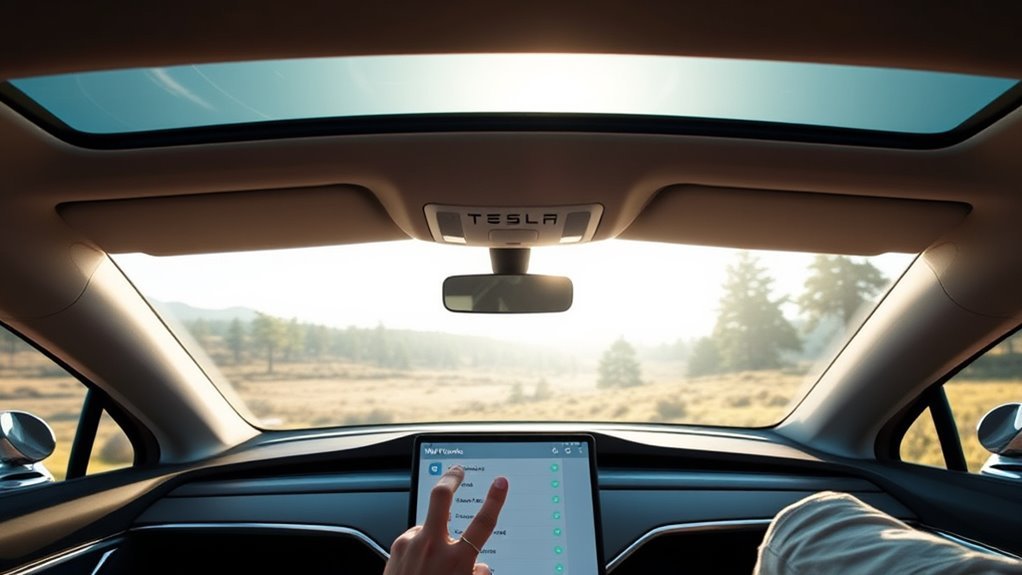
If you need to remove a saved network, open the Wi-Fi settings menu. Tap on the network name you wish to delete to see more details.
Select the Forget option to remove the network from your saved list. This prevents your car from attempting to connect to that signal automatically in the future.
Fixing Common Connection Problems
Connectivity issues often stem from simple software glitches or weak signals. Use these steps to troubleshoot your connection:
- Restart the Infotainment System: Hold both scroll wheels on the steering wheel until the screen turns black and reboots.
- Toggle Wi-Fi: Turn the Wi-Fi switch off in your settings, wait ten seconds, and turn it back on.
- Forget and Reconnect: Remove the network from your saved list and join it again as if it were a new network.
- Check for Software Updates: Ensure your car’s operating system is up to date, as older versions may have known connectivity bugs.
Always consult a qualified professional or official support channels if you suspect a hardware issue with your vehicle’s Wi-Fi antenna.
Managing Your Software Updates
Your Tesla performs best when it runs the latest software version. A reliable home Wi-Fi connection makes this process automatic and fast.
- Speed: Wi-Fi downloads occur much faster than cellular downloads.
- Features: Regular updates introduce new capabilities and driver assistance improvements.
- Remote Access: The Tesla app lets you trigger updates from your phone while the car is parked.
- Stability: Home networks provide a consistent stream of data, reducing the risk of interrupted update installations.
Customizing Your Vehicle
Many owners improve their driving experience with aftermarket accessories. Quality floor mats protect the interior from wear and keep the vehicle in good condition.
Phone mounts also prove useful for keeping your device secure and accessible. These simple upgrades provide immediate benefits for daily commuters.
Finding Deals on Accessories
You can find deals on high-quality accessories by monitoring specific channels. Many accessory makers provide discount codes through social media and review videos.
Sign up for newsletters from reputable retailers to receive notifications about sales. Engaging with community forums also helps you identify reliable products that other owners recommend.
Frequently Asked Questions
How do I connect my Tesla to Wi-Fi?
Open the Settings menu on your touchscreen, tap the Wi-Fi icon, select your network, and enter the password.
Why won’t my Tesla connect to Wi-Fi?
Connection failures usually result from a weak signal or an incorrect password. Move your vehicle closer to your router or double-check your network credentials.
How do Teslas connect to the internet?
Teslas use a built-in cellular modem for basic connectivity and can join Wi-Fi networks for faster downloads and enhanced services.
Can I use my phone as a hotspot?
Yes, your Tesla can connect to a mobile hotspot created by your phone, though it may consume significant cellular data from your mobile plan.
Next Steps
Establishing a solid Wi-Fi connection ensures your vehicle operates exactly as Tesla intended. Test your connection today by opening the browser or checking for a software update. Keeping your software current is the best way to maintain your vehicle’s value and performance over the long term.







Leave a Reply