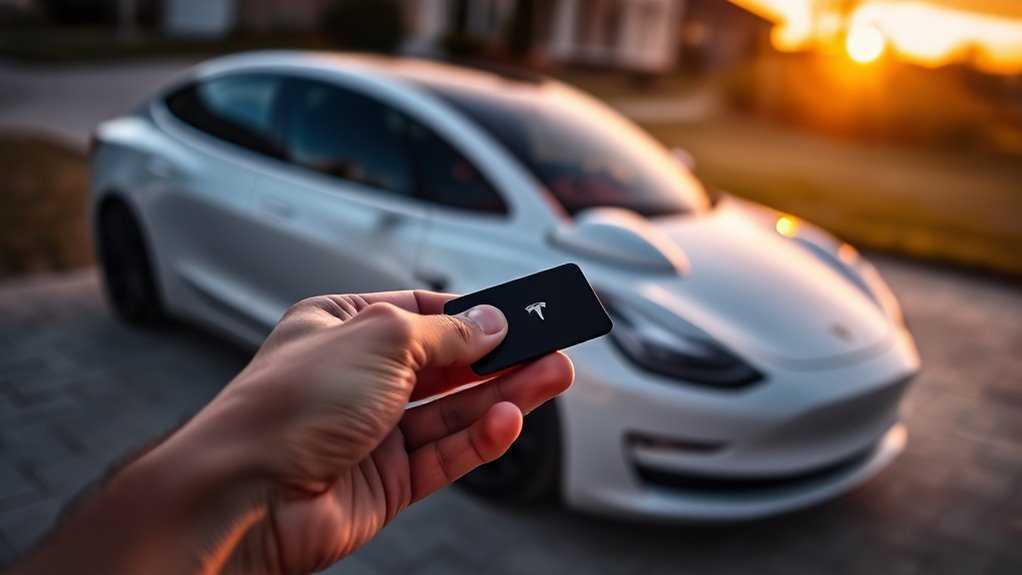
To access your Tesla with a key card, simply hold the card flat against the B-pillar until you hear a chirp or see the lights flash. Once inside, press the brake pedal within two minutes to start driving; otherwise, you’ll need to re-scan the card. If you’d like to add a new key card or troubleshoot any issues, keep exploring for additional tips and methods to enhance your Tesla experience.
Key Takeaways
- Hold the key card flat against the B-pillar for access confirmation via chirp or flashing lights.
- If more than 30 seconds pass after entry, re-scan the key card on the center console.
- To add a new key card, access the Car menu and follow on-screen instructions for registration.
- Ensure surroundings are clear of obstacles that may interfere with the key card’s signal during use.
- Regularly monitor registered key cards in the Car menu and revoke access to any lost cards for security.
Understanding the Tesla Key Card: Unlocking Your Vehicle With Ease
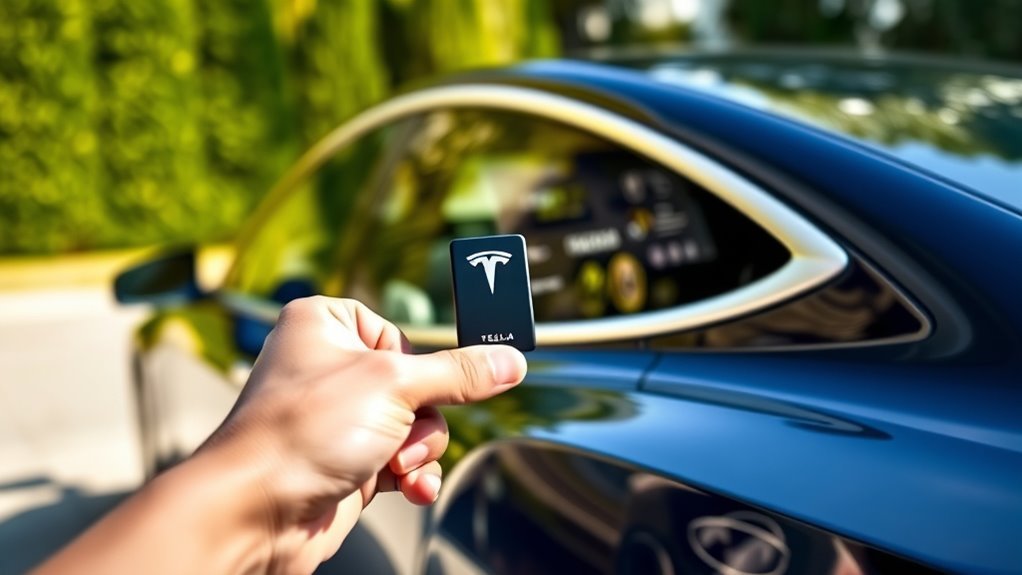
Understanding how to access your Tesla with the key card is essential for a seamless experience, especially when you’re in a hurry. The Tesla key card is your reliable solution, designed for quick entry by simply placing it flat against the B-pillar between the front and rear doors.
Once recognized, your vehicle confirms access with a chirp or flashing lights.
Your vehicle acknowledges access with a reassuring chirp or a flash of lights.
This key card offers impressive durability; it’s waterproof and battery-free, making it an ideal backup access method. Just remember, if you don’t scan the card again within two minutes of entering, you’ll need to re-authenticate to start your vehicle.
You can also manage access through the Tesla app, allowing you to add or remove key cards as necessary.
Empower your driving experience by mastering this straightforward entry method, ensuring you’re always ready to hit the road.
How to Unlock Your Tesla With the Key Card
Accessing your Tesla with the key card is a straightforward process that guarantees you can access your vehicle quickly and efficiently. This method provides key card security and serves as a reliable alternative access option.
To gain entry, hold the card flat against the B-pillar, located between the front and rear doors. You’ll know it’s working when you hear a chirp or see the lights flash. Remember, you must do this within one or two seconds for it to work. Once inside, you have two minutes to press the brake pedal; otherwise, re-scan the key card for driving access. If over 30 seconds pass, simply tap the key card again. For added convenience, you can also re-scan near the wireless charging pad between the front seats.
| Action | Description |
|---|---|
| Gaining Entry | Hold card against B-pillar |
| Inside Access | Press brake pedal within two minutes |
| Re-authentication | Tap card again if over 30 seconds pass |
Step-by-Step Instructions for Using the Key Card
Accessing your Tesla with the key card is straightforward if you follow a few essential steps.
Start by placing the card correctly on the B-pillar and look for the confirmation signals to guarantee you’re good to go.
If you need to re-authenticate, just tap the card again—it’s that simple!
Key Card Placement Tips
To effectively use your Tesla key card, start by ensuring it’s free from interference by removing it from your pocket or wallet.
For ideal performance, place the key card flat against the B-pillar, which is located between the front and rear doors. Hold it close to the reader for the best chance of recognition.
Once the card is in position, wait for the confirmation signals that indicate access, such as a single chirp or flashing lights.
After access, quickly enter the vehicle and press the brake pedal within two minutes to start driving. If more than 30 seconds pass, you’ll need to re-scan the key card against the center console or wireless charging pad for identification.
Confirmation Signals Explained
When you place your Tesla key card against the B-pillar, you’ll receive confirmation signals that indicate whether the opening process was successful.
Look for two main confirmation types: a single chirp sound or flashing lights. If either occurs, your vehicle is accessible and ready for you.
Remember, you must enter the car within two minutes and press the brake pedal to start driving. If you wait too long, you’ll need to re-scan the key card.
For ideal sensor recognition, hold the key card flat and close to the B-pillar for one to two seconds.
Understanding these access signals guarantees a smooth experience, empowering you to embrace the freedom of driving your Tesla hassle-free.
Re-authentication Process Simplified
Although using your Tesla key card is straightforward, understanding the re-authentication process can enhance your experience. Here’s how to navigate it effectively:
- Place the key card flat against the B-pillar until you hear a chirp or see lights flash.
- If over 30 seconds pass, you need to re-authenticate by tapping the card again.
- Confirm the card is close to the B-pillar for proper recognition (within a second or two).
- After gaining access, you have a two-minute window to press the brake pedal before a re-scan necessity kicks in.
- Alternatively, you can re-scan the key card near the wireless charging pad.
Mastering the re-authentication timing keeps your journey seamless and liberating!
How to Add a New Key Card to Your Tesla
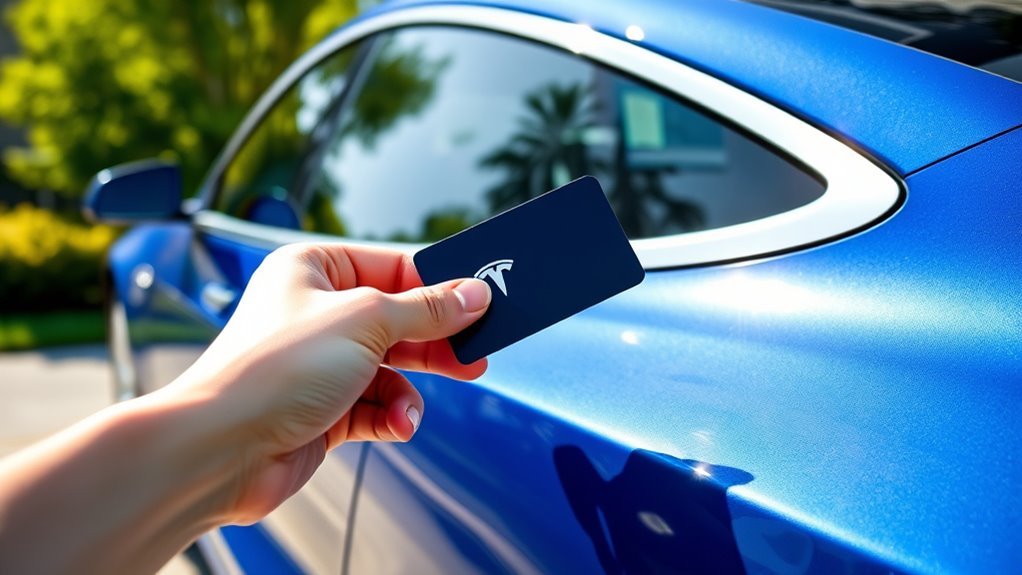
Adding a new key card to your Tesla is a straightforward process that enhances your vehicle’s accessibility.
To get started, use an existing key to enter your Tesla and access the Car menu on the touchscreen. Navigate to the Locks section, where you’ll find the option to add a new key card. Follow the on-screen instructions, which might differ depending on your Tesla model, for successful registration.
Make sure to place the new key card flat against the center console or charging pad during setup for proper identification.
Once added, this new key card will function just like your original, ensuring key card security and Tesla compatibility.
Enjoy the freedom of having multiple key cards for your vehicle, making it easier for family or friends to access your Tesla whenever needed.
Using Your Smartphone as a Key Card for Your Tesla
Using your smartphone as a key card for your Tesla offers convenience, but there are a few requirements to keep in mind.
You’ll need to verify NFC is enabled on your device and check your contactless payment settings if you encounter any issues.
Additionally, for automatic opening, make certain Bluetooth and location services are active, while keeping in mind that you can access your vehicle from a distance of about 30 feet.
NFC Functionality Requirements
To successfully use your smartphone as a key card for your Tesla, it’s essential to enable NFC (Near Field Communication) on your device, as this technology allows seamless communication with your vehicle.
Here are some key NFC functionality requirements you should check:
- Confirm NFC settings are turned on in your device.
- Tap your smartphone against the B-pillar to access, just like a physical key card.
- Keep your phone within 30 feet of the vehicle for ideal Bluetooth connectivity.
- Verify that ‘Tesla’ is enabled in your contactless payments settings.
- If problems persist, restart your device and check for software updates.
Using your smartphone as a key card offers modern convenience, especially if you misplace your physical key card.
Automatic Unlocking Features
Automatic access features make accessing your Tesla more convenient than ever, especially when you’re within range. By enabling Bluetooth and location services on your smartphone, you can gain entry to your car automatically when you’re about 30 feet away. Your smartphone utilizes NFC technology, allowing you to access it by simply tapping against the B-pillar, just like your key card.
| Feature | Description |
|---|---|
| Automatic Access | Grants entry as you approach |
| Smartphone Compatibility | Works with most modern smartphones |
| NFC Technology | Tap to access at the B-pillar |
| Security Management | Control access permissions in the app |
| Location Services | Must be enabled for automatic access |
Ensure “Tesla” is enabled in your contactless payment settings for seamless access!
Proximity Access Limitations
While smartphones offer a convenient way to access your Tesla, there are limitations that you need to be aware of for ideal functionality. Proximity challenges can arise, making it essential to understand the factors that influence your smartphone’s ability to open your vehicle.
Here are some key points to keep in mind:
- You need to be within about 30 feet for automatic access.
- Confirm NFC is enabled for Android devices; it’s significant for tapping against the B-pillar.
- Check your contactless payment settings to keep “Tesla” activated.
- Bluetooth and location services must be active for seamless opening.
- Battery life can affect connectivity issues, leading to potential opening failures.
Stay informed, and enjoy the freedom your Tesla provides!
How to Solve Common Key Card Problems?
When your Tesla key card isn’t working as expected, it can be frustrating, but resolving common issues is often straightforward.
Start with key card troubleshooting: verify you’re placing the card flat against the B-pillar and holding it close for proper sensor recognition. If the vehicle doesn’t open after tapping the key card, check your surroundings. You might be facing signal interference from obstacles nearby, so clear the area and try again.
Ensure the key card is flat against the B-pillar and clear of obstacles for optimal sensor recognition.
Remember, if you enter the vehicle and need to re-authenticate after two minutes, simply tap the key card on the center console or charging pad.
If problems persist, access the Car menu to manage key card settings or consider adding a new key card for backup access.
These steps should help you regain seamless entry to your Tesla, giving you the freedom you seek in your driving experience.
Revoking Access for Lost Key Cards
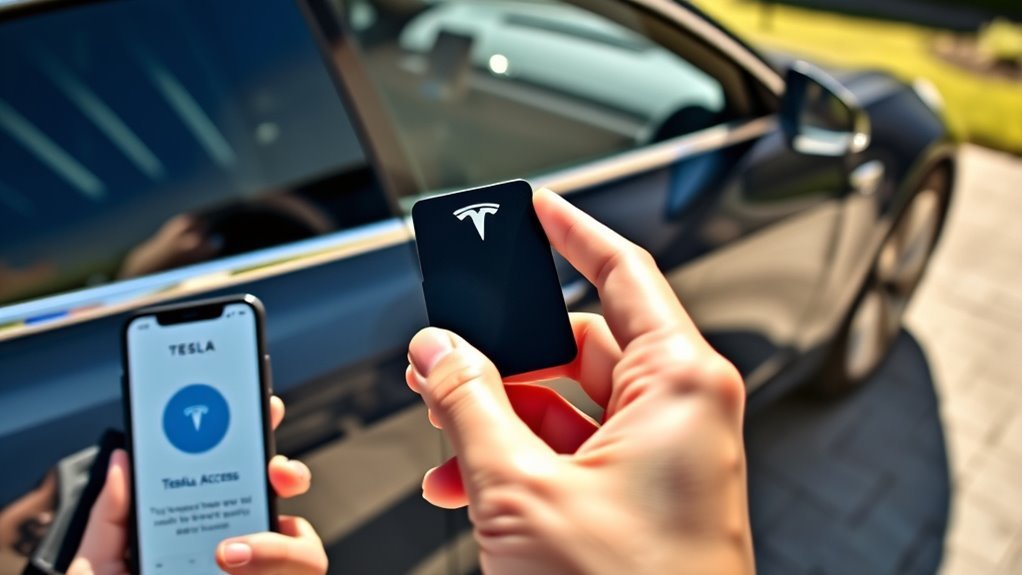
If you’ve lost your Tesla key card, revoking its access is a straightforward process that guarantees your vehicle remains secure.
Follow these steps to verify your lost keycard security:
- Enter your Tesla and access the Car menu on the screen.
- Navigate to the Locks section to view registered key cards.
- Locate the lost key card and press the trash can icon next to it.
- Follow the on-screen instructions to confirm the revocation of access.
- For identification, tap your remaining key card against the center console or charging pad.
Key Card Benefits and Important Security Tips
Revoking access to a lost key card is just one way to guarantee your Tesla remains secure. The key card offers impressive durability, being both waterproof and battery-free, making it a reliable backup for gaining entry to your vehicle.
At just $35 for two cards, it’s an affordable alternative if you misplace your primary key fob or smartphone.
Managing your key cards is a breeze through the Tesla app, where you can easily add or remove access as needed. For enhanced security, always revoke access to any lost cards.
Keeping your key card within reach is also essential; leaving it unattended in a locked vehicle can trigger detection systems unintentionally, leading to unwanted access issues.
Frequently Asked Questions
How to Unlock Tesla From Outside With Keycard?
To access your Tesla from outside, hold the keycard flat against the B-pillar. Wait for the chirp or lights. Remember, if you wait too long, you’ll need to re-tap the keycard. Enjoy!
How to Use Backup Key Card on Tesla?
Did you know 30% of Tesla owners rely on key card usage for backup access? To use the backup key card, simply place it on the B-pillar, wait for confirmation, and enjoy your drive!
Why Is My Tesla Not Unlocking With My Phone or Card?
Your Tesla might not open due to phone connectivity issues or card malfunction causes. Check your Bluetooth, NFC settings, and guarantee the card is positioned correctly against the B-pillar for proper sensor recognition.
How Do I Get to the Tesla Secret Menu?
To access the Tesla secret menu, tap the Tesla “T” logo on your touchscreen. Explore hidden settings and secret menu features by swiping and using on-screen buttons to enhance your vehicle’s performance and customization.
Conclusion
In summary, mastering your Tesla’s key card opens up a world of convenience and security. While some believe that the key card’s technology is prone to hacking, Tesla continually updates its systems to safeguard against such threats. By understanding how to use and manage your key cards effectively, you can enjoy a seamless driving experience. Remember, keeping your key cards secure and revoking access when needed is essential for maintaining your vehicle’s safety. Drive smart and stay secure!







Leave a Reply